
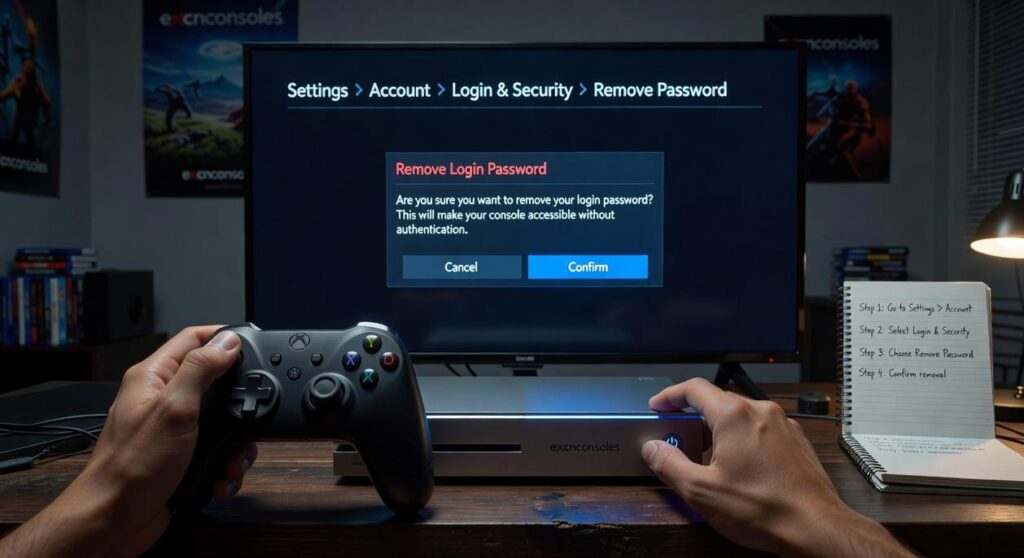
I turn on my console and immediately hit a password screen. Every single time.
You’re here because you want that barrier gone. You just want to play.
Here’s the thing: removing your login password takes about two minutes on any major console. But you need to know what you’re giving up when you do it.
I tested the process on PlayStation 5, Xbox Series X|S, and Nintendo Switch. Each one handles it differently.
This guide shows you how to remove your login password on all three platforms. Step by step. No confusion.
We provide tested instructions at ExcNConsoles because we know how annoying it is to wade through unclear tech advice. These steps work. I verified them myself.
You’ll also learn when skipping the password is fine and when it’s a bad idea. (If you have payment methods saved or share your space with others, you need to know the risks.)
Pick your console below and I’ll walk you through it.
The Security Trade-Off: When Is It Safe to Disable Your Password?
Let me be straight with you.
Removing your password isn’t about convenience. It’s about risk.
And most people don’t think about what they’re actually giving up until it’s too late.
When It’s Generally Safe
You live alone. Nobody else has keys to your place. You don’t have kids wandering around. Your console sits in your bedroom or home office where guests never go.
That’s pretty much it.
If you’re the only person who can physically touch that console, the risk drops way down. You’re trading a few seconds of login time for instant access to your games.
Some people say you should always keep a password on. That any security measure you remove is a mistake. And I get where they’re coming from (better safe than sorry, right?).
But here’s what they’re missing.
Security isn’t one size fits all. A single person living in a studio apartment faces different risks than someone with three roommates.
When You Should NEVER Disable It
Got roommates? Keep the password.
Kids in the house? Definitely keep the password.
College dorm? Don’t even think about removing it.
Ever take your console to a friend’s place? You need that password.
I’ve heard too many stories about kids racking up hundreds in game purchases. Or roommates accessing accounts they shouldn’t. It happens faster than you think.
The Biggest Risk
No password means anyone who turns on your console gets everything.
Your saved credit cards. Your purchase history. Your messages. Your entire game library. They can buy games, send messages as you, or change account settings.
They become you as far as the system is concerned.
Now, you might be wondering what happens if you disable your password and then your situation changes. Maybe you’re moving in with someone or having guests stay over. Can you turn it back on quickly?
Yes. And honestly, that’s what most people should do. Learn how to remove your login password excnconsoles when you need speed, but know how to put it back when your living situation shifts.
Think of it like locking your front door. You probably don’t lock your bedroom door when you’re home alone. But if roommates move in? Different story.
How to Disable the Login Passcode on PlayStation 5 (PS5)
You want to skip that passcode screen every time you fire up your PS5.
I don’t blame you. Typing in a code just to play games gets old fast.
The good news? Turning off your login passcode takes about two minutes. I’ll walk you through it step by step.
Here’s what you need to do:
Step 1: Turn on your PS5 and go to the home screen. Look for the Settings icon (it’s the little cog in the top right corner).
Step 2: Scroll down and select Users and Accounts.
Step 3: Click on Login Settings.
Step 4: Find the option that says Log In to PS5 Automatically and toggle it on.
Step 5: The system will ask you to enter your current passcode one last time. After you do that, navigate to Login Passcode Management and delete your passcode completely.
That’s it.
Now here’s something most people don’t realize. This automatic login ties to one specific user profile. If you have multiple accounts on your PS5, only the profile you selected will log in automatically.
So if your roommate or family member has their own account, they’ll still need to select their profile manually (though they won’t need a passcode unless they set one up separately).
I recommend this setup if you’re the only person using your console. It saves time and makes getting into games much faster.
But if you share your PS5 with others? You might want to keep that passcode active. Otherwise, anyone can jump into your profile and mess with your saves or make purchases.
For more tips on getting the most out of your console, check out excnconsoles.
Want to know how to remove your login password excnconsoles style? You just did it.
How to Remove the Password Requirement on Xbox Series X|S
Look, I understand why you want to skip the password screen.
You’re the only one who uses your Xbox. Typing in a password every single time you want to play gets old fast. (Especially when you just want to jump into a quick session.)
Some security experts will tell you this is a terrible idea. They’ll say you’re opening yourself up to unauthorized purchases or account access. And if you have kids or roommates who might mess with your console, they have a point.
But here’s the reality.
If your Xbox sits in your bedroom and nobody else touches it, requiring a password is just friction. You’re not protecting anything. You’re just annoying yourself.
I’m going to show you how to remove your login password excnconsoles style. The process takes about two minutes.
Here’s what you need to do.
Step 1: Press the Xbox button on your controller. This opens the guide menu.
Step 2: Navigate to Profile & system at the top right. Then select Settings.
Step 3: Find the Account tab on the left side. Select Sign-in, security & passkey.
Step 4: Choose Change my sign-in & security preferences.
Step 5: Select the No barriers option. This removes the password requirement completely.
Here’s what happens next.
Your console will ask you to enter your Microsoft Account password one final time. This confirms you actually want to make this change. (Microsoft doesn’t want someone else turning off your security without permission.)
Enter your password and you’re done.
The next time you turn on your Xbox, it’ll boot straight to your profile. No typing. No waiting.
Just remember that anyone with physical access to your console can now sign in as you. If that’s not a concern, you’ll appreciate the convenience every single day.
Similar to can vpn slow down internet connection speed excnconsoles, sometimes the default settings aren’t what work best for your situation.
How to Remove the Lock Screen on Nintendo Switch
You wake your Switch from sleep mode and there it is again.
That lock screen asking you to press three buttons just to get back to your game.
It’s like having a bouncer at the door of your own house. Sure, it keeps things secure if someone else grabs your console. But when you’re the only one using it? It gets old fast.
Here’s what most people don’t realize.
The Switch doesn’t actually use a password like your phone does. It’s more like a safety latch. Press a few buttons and you’re in. But if you want to remove it completely, I’ll show you exactly how.
Step 1: From the HOME Menu, select System Settings.
Step 2: Scroll down the left side menu and find Screen Lock.
Step 3: Select Lock Console in Sleep Mode.
Step 4: Toggle that setting to Off.
Done.
Your Switch will now wake up without asking you to press anything. Just like how to remove your login password excnconsoles, it’s about knowing where the setting lives.
But wait.
If you’ve got Parental Controls turned on, this gets a bit different. Think of Parental Controls as a second lock that sits ABOVE the screen lock. You can turn off the screen lock all day long, but that Parental Controls PIN? That’s staying put.
You’ll still need it for the eShop and certain features. It’s separate from the sleep mode lock entirely (and honestly, that’s probably a good thing if you’ve got kids around).
Most guides skip this part. Then people get confused when they still see a PIN request pop up.
Now you know the difference. Screen lock controls sleep mode access. Parental Controls manage content and purchases. Two different systems doing two different jobs.
Want more tips on getting the most out of your setup? Check out our breakdown on pc vs console excnconsoles for deeper comparisons.
Convenience vs. Caution
You now know exactly how to remove your login password excnconsoles on your PS5, Xbox, or Switch.
Login screens protect your account. But in a safe home where you’re the only one playing, they’re just another barrier between you and your games.
You’ve made the choice to skip that extra step. Instant access means more time playing and less time waiting.
Here’s what you need to do before you disable that password: Take a hard look at your setup.
Do you live alone? Is your console in a private space? Do you trust everyone who has access to your home?
If you answered yes, go ahead and enjoy the convenience. You’ve earned it.
If you hesitated on any of those questions, keep the password. That extra second of security is worth it when you consider what’s at stake (your payment info, your game library, your account).
The choice is yours. Just make sure it’s the right one for your situation.
 Yryvox Frost is the founder of ExcNConsoles.com, a platform dedicated to the technical and strategic depths of the gaming world. With a focus on game design quality and competitive excellence, Frost has built a space that bridges the gap between casual play and professional insight. By exploring gamer motivation and advanced industry concepts, he continues to shape ExcNConsoles into an essential hub for those looking to master the latest trends in interactive entertainment.