
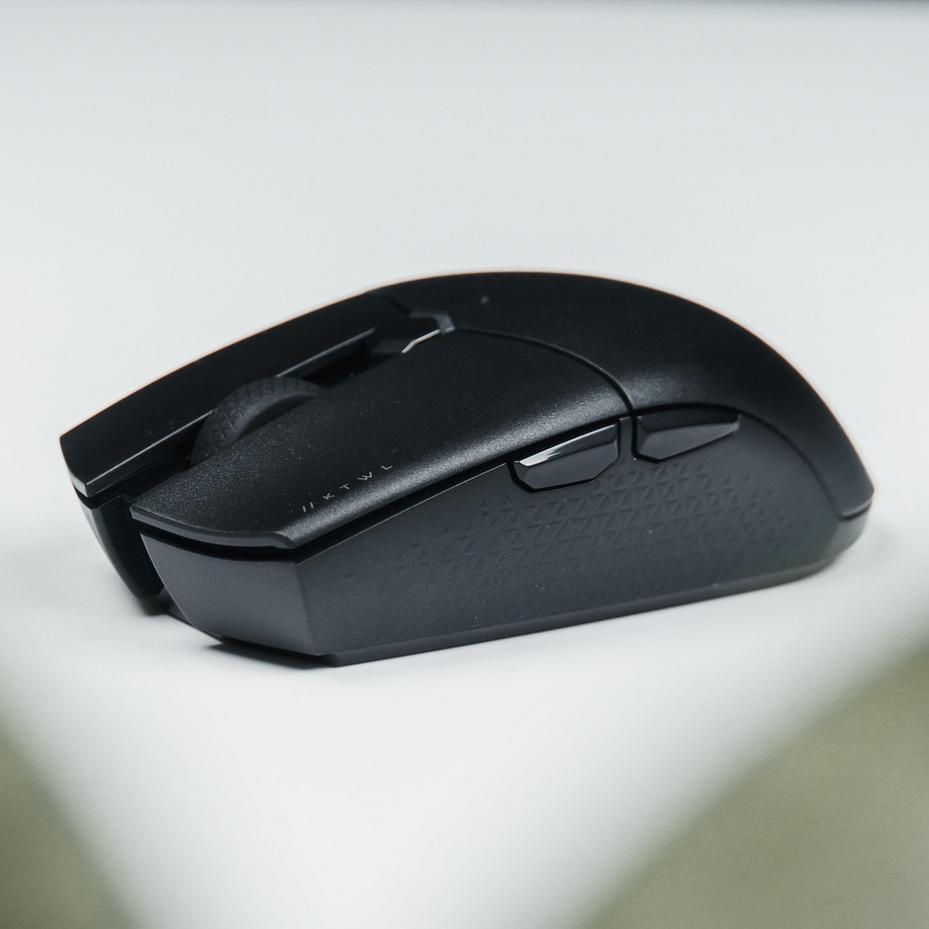
I’ve tested over 40 gaming mice on PlayStation and Xbox in the past year alone.
You’re probably here because you bought a mouse that looked perfect for console gaming but it either doesn’t work right or feels laggy compared to your controller. That’s frustrating.
Here’s the truth: most gaming mice are built for PC. The ones that claim console compatibility? Half of them have serious problems that don’t show up until you’re in a match.
I spent months plugging different mice into PS5 and Xbox Series X to see what actually works. Not what the box says. What performs when you’re playing Warzone or Apex.
This guide shows you how to find the leading gaming mouse that will actually give you an edge on console. I’ll walk you through what matters and what’s just marketing.
We tested these mice with real games on real consoles. We measured input lag and tracked which features actually function versus which ones are disabled on PlayStation and Xbox.
You’ll learn which specs to look for, which brands deliver on their promises, and which popular models to avoid.
No guessing. Just what works.
Understanding the Console Compatibility Challenge
You plug your mouse into your Xbox. Nothing happens.
Or worse, it works in the menu but dies the second you load into a match.
I see this all the time. People assume consoles work like PCs. They don’t.
Here’s why.
Why Your PC Mouse Won’t Just Work
On PC, you plug in a mouse and it works. Simple.
Consoles? They run locked-down operating systems. Think of it like trying to use an Android charger on an iPhone (it’s not going to happen without the right adapter).
Your console needs either native game support or a specific hardware handshake to recognize mouse input. Without one of those two things, you’re stuck.
This matters because it affects which games you can actually play with a mouse.
Some people argue that consoles should stay controller-only. They say it preserves the level playing field and keeps the console experience pure. I get where they’re coming from.
But that ignores what players actually want. Cross-play exists now. PC players are already using mice against console players in the same lobbies.
Native Support vs. Emulation
There are two ways a mouse works on console.
Native support means the game developer coded mouse input directly into the console version. Games like Call of Duty and Fortnite do this. You get real mouse movement with no conversion lag.
Emulation is different. The mouse pretends to be a controller. It translates your mouse movements into analog stick signals.
This can introduce lag. Sometimes just a few milliseconds. Sometimes enough to notice.
The benefit? Emulation works on games that don’t have native support. You get mouse aim where you otherwise couldn’t. But you sacrifice some responsiveness.
When you’re learning how to find the leading gaming mouse excnconsoles, understanding this difference saves you from buying the wrong gear.
The Compatibility Sticker Lie
Here’s what drives me crazy.
You see a mouse with a big “Works on Xbox/PS5” sticker. You buy it. Then you find out it only works for navigating menus.
In-game? Nothing.
Most manufacturers aren’t lying exactly. The mouse does technically work on the console. Just not where it counts.
Real compatibility is game-dependent, not console-dependent.
A mouse might work perfectly in one game and be completely useless in another. Same console. Same hardware. Different results.
Check which specific games support your mouse before you buy. Not which consoles. The console support means almost nothing if your favorite game doesn’t recognize the input.
Key Mouse Features That Actually Matter for Console Gaming
Most gaming mice are built for PC players.
And manufacturers love throwing around numbers that sound impressive. You’ll see boxes screaming about 20,000 DPI or 8000Hz polling rates like they’re selling you a spaceship.
Here’s my take: most of that is complete nonsense for console gaming.
I’ve tested dozens of mice on Xbox and PlayStation. The features that actually make a difference? They’re not what you’d expect.
DPI – Finding the Sweet Spot
DPI stands for dots per inch. It measures how far your cursor moves when you physically move the mouse.
Higher sounds better, right?
Wrong.
Console games have built-in controller acceleration and aim assist. These systems weren’t designed for mice that can do 16,000 DPI. When you plug in a mouse with settings that high, the game freaks out (your crosshair will fly across the screen if you breathe on the thing).
I keep my settings between 800 and 2400 DPI. That’s the sweet spot for most shooters on console.
Some people insist you need those ultra-high DPI options for flexibility. But honestly? You’ll never use them. Save your money.
Polling Rate – The 1000Hz Standard
Polling rate is how many times per second your mouse reports its position to the console.
1000Hz means 1000 times per second. That’s once every millisecond.
You’ll see mice advertising 2000Hz or even 8000Hz now. Sounds great until you realize console USB ports can’t actually process data that fast. The hardware bottlenecks before you see any benefit.
A stable 1000Hz is what you want. Period.
Anything higher is marketing fluff.
Onboard Memory – Your Secret Weapon
This is THE feature that separates console-ready mice from PC-only mice.
Onboard memory lets you save your DPI settings and button assignments directly to the mouse itself. You configure everything on a PC using the manufacturer’s software, then unplug it and move to your console.
Without onboard memory? Your mouse resets to factory defaults every time you plug it in.
I learned this the hard way. Bought a mouse without checking, spent an hour wondering why my settings wouldn’t stick on PlayStation.
If you’re serious about how to find the leading gaming mouse excnconsoles, check for onboard memory FIRST. Everything else is secondary.
Buttons & Customization
Extra buttons matter more on console than PC.
Why? Because you’re giving up a controller with 14+ inputs. You need to map actions like melee, crouch, reload, or building somewhere accessible.
I use side buttons for melee and crouch in most shooters. Saves me from taking my thumb off the movement keys.
But here’s the catch: those button assignments only work if your mouse has onboard memory. Otherwise the console just sees them as generic mouse buttons that do nothing.
Most mice come with two side buttons. That’s usually enough. Some have four or six, which can help in games with lots of keybinds.
Just remember: more buttons doesn’t mean better. It means more things to accidentally press when you’re trying to clutch a 1v3.
Wired vs. Wireless: The Console Connection Dilemma
Let me be straight with you.
Wired is still king for console gaming.
I know wireless sounds better. No cables cluttering your setup. Freedom to move around. It feels modern.
But here’s what actually matters when you’re playing on a console.
Wired gives you zero latency. Every click registers instantly. No delay between your hand and what happens on screen. That’s huge when you’re trying to land headshots or react to split-second plays.
You also skip the battery anxiety. No wondering if your mouse will die mid-match. No scrambling for a charger during a ranked session.
And compatibility? Plug it in and you’re done. No drivers to mess with. No settings to configure.
Now, some of you are still going to want wireless. I get it.
Here’s what you need to know. Most wireless mice need a 2.4GHz USB dongle to work with consoles. That’s the little receiver you plug into your USB port.
Bluetooth mice? Skip them for gaming. The latency is too high. You’ll feel the delay and it’ll mess with your aim.
If you’re set on going wireless, here’s what to look for:
• Low-latency 2.4GHz connection (not Bluetooth)
• Long battery life (at least 40 hours of use)
• Minimal input lag (under 1ms if possible)
Some high-end wireless mice perform just as well as wired. You won’t notice a difference. But they cost more and you need to know how to find the leading gaming mouse excnconsoles that actually delivers on those promises.
Pro tip: Keep a charging cable handy even with wireless mice. You can plug in and keep playing if the battery runs low.
The bottom line? Wired is safer. Wireless can work if you choose carefully.
Your 5-Step Checklist for Finding a Compatible Mouse
You’ve decided to ditch the controller for certain games.
Smart move. But now you’re staring at dozens of gaming mice online and wondering which ones actually work with your console.
Here’s the problem. Most product pages are written for PC gamers. They don’t tell you what you really need to know.
I’m going to walk you through exactly how to find the right mouse without wasting money on something that won’t work.
Step 1: Check Your Favorite Games First
Before you spend a dime, do this. Search “[Your Game] mouse and keyboard support on [Your Console]” online.
Why? Because compatibility isn’t about the console. It’s about the game developer. Call of Duty might support it while FIFA doesn’t (even though both run on the same system).
Save yourself the headache and verify this first.
Step 2: Prioritize Mice with Onboard Memory
This is non-negotiable.
Onboard memory means your settings save directly to the mouse. No software needed. Most console games won’t let you run configuration programs, so you need a mouse that remembers your DPI and button assignments on its own.
Look for this feature explicitly on the product page or box.
Step 3: Read Reviews from Console Players
Here’s where most people mess up. They read glowing reviews from PC players and assume the mouse will work the same way on console.
It won’t.
Go to Amazon, Best Buy, or Reddit and search reviews specifically for mentions of “PS5,” “Xbox,” or “console.” Filter out the PC noise and focus on what actually matters for your setup.
Step 4: Verify the Connection Type
For wireless mice, you need a 2.4GHz USB dongle. Bluetooth usually doesn’t cut it for gaming (the lag will drive you crazy).
For wired options, confirm it’s a standard USB-A connection. Most consoles don’t play nice with USB-C mice without adapters.
Step 5: Check the Manufacturer’s Website
Reputable brands that support console play will say so. Look for a specific console compatibility page or FAQ section on their site.
If they’re dodging the question or being vague? That’s your answer right there.
When you’re ready to learn how to find the leading gaming mouse excnconsoles, these five steps will save you time and money. No guesswork. No returns. Just a mouse that works the first time.
A Quick Note on Adapters and Converters
Look, I need to talk about something you’ve probably seen advertised all over gaming forums.
XIM. Cronus. Those little boxes that promise you can use any mouse with any game.
They work by translating your mouse movements into controller inputs. Basically, they trick your console into thinking you’re using a regular controller when you’re actually clicking heads with a mouse.
Sounds perfect, right?
The Reality Check
Here’s where things get messy.
Sure, you get universal compatibility. That’s the big selling point. But you’re also getting input lag (sometimes just enough to throw off your aim), a setup process that’ll make you want to throw your console out the window, and one other tiny problem.
Most competitive games consider these devices cheating.
I’m not kidding. You can get banned. Permanently.
Games like Call of Duty and Fortnite actively hunt for adapter users. And when they catch you? Your account is toast. All those skins and progress? Gone.
Some people argue it’s no different than using a mouse on PC. But here’s the thing. You’re bypassing the game’s intended input method and gaining an unfair advantage over controller players in lobbies that are supposed to be controller-only.
That’s why I recommend sticking to games with native mouse support. Yeah, the selection is smaller. But you won’t wake up to a ban notice, and your inputs will feel crisp and responsive.
If you’re serious about how to find the leading gaming mouse excnconsoles, get one with onboard memory. That way your settings travel with the mouse and you’re playing by the rules.
Trust me. The headache isn’t worth it.
Aim with Confidence
You came here to cut through the marketing noise and find a gaming mouse that actually works with your console.
Now you have that roadmap.
The key is simple: prioritize game support and onboard memory over flashy specs that don’t matter. Those are the features that separate real performance from empty promises.
I’ve given you a checklist to evaluate your next purchase. Use it before you buy.
Stop settling for mice that work against you. Find the leading gaming mouse excnconsoles and get the precision you’ve been missing.
Your next session deserves better aim.
 Yryvox Frost is the founder of ExcNConsoles.com, a platform dedicated to the technical and strategic depths of the gaming world. With a focus on game design quality and competitive excellence, Frost has built a space that bridges the gap between casual play and professional insight. By exploring gamer motivation and advanced industry concepts, he continues to shape ExcNConsoles into an essential hub for those looking to master the latest trends in interactive entertainment.